



Overview
Once your instance has been provisioned, you can access it using standard remote access methods. Linux instances are typically accessed via SSH, while Windows instances are accessed using Remote Desktop (RDP). A browser-based console is also available for all instances and can be used regardless of operating system or network state.
This article explains:
-
How to locate your access details
-
How to connect to your instance
-
When to use console access versus network-based access
Locating Your Access Information
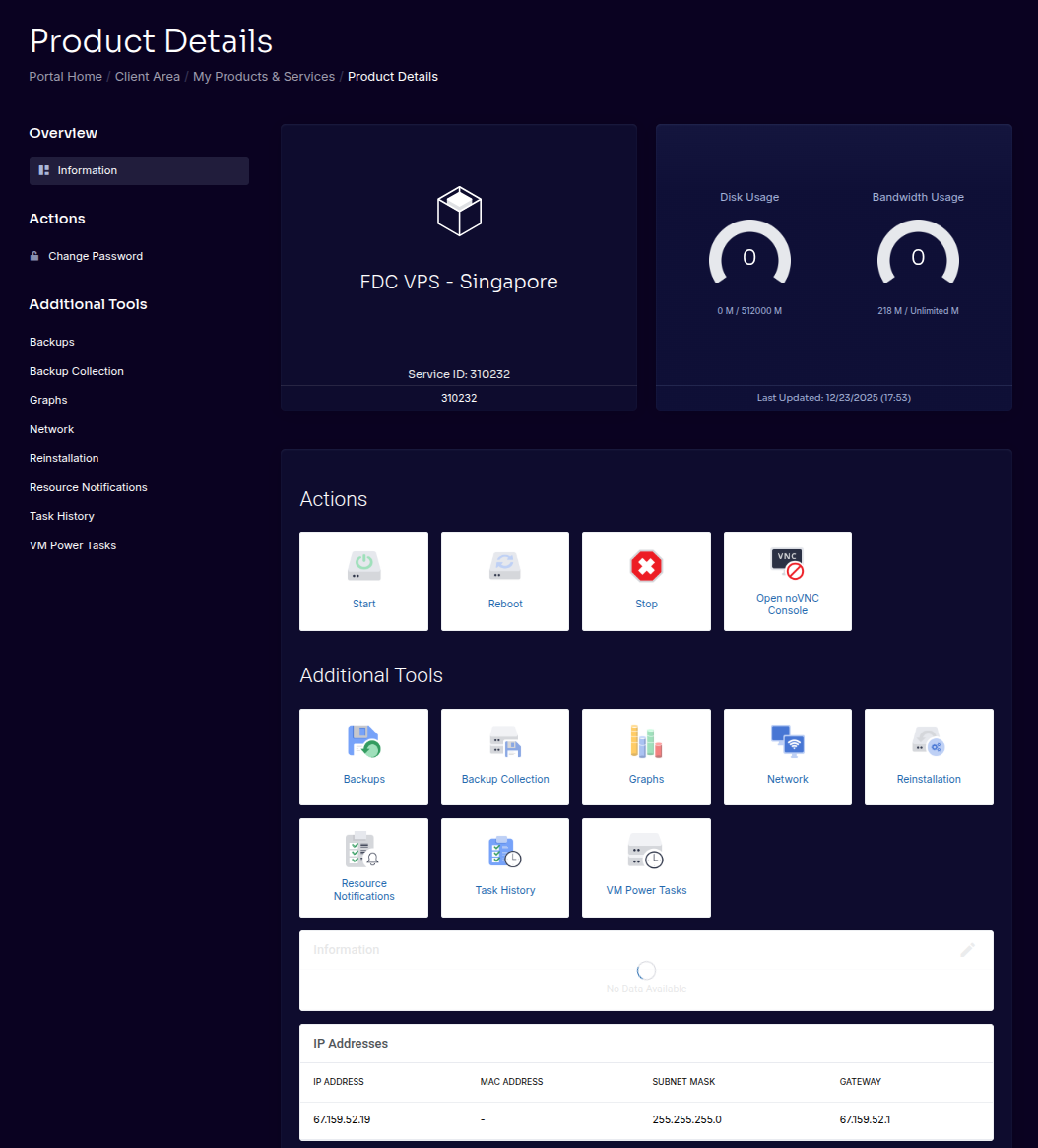
After provisioning is complete, your instance will appear in the client portal with key connection details.
You’ll typically see:
-
Assigned IP address(es)
-
Username (Linux)
-
Initial password (if applicable)
-
Available management actions
Accessing Linux Instances (SSH)
Most Linux instances are accessed using SSH.
Connecting via SSH
From a terminal on your local machine:
You may be prompted to accept the host key on first connection.
⚠️ Important
If you deployed from a Linux template, initial credentials are provided automatically. If you installed your own OS, you are responsible for user creation and SSH configuration.
SSH Access Issues
If you cannot connect via SSH:
-
Verify the instance is powered on
-
Confirm the correct IP address and username
-
Check firewall rules inside the operating system
-
Use console access for troubleshooting
???? Advanced
SSH access issues are almost always caused by in-OS configuration, not platform-level networking problems.
Accessing Windows Instances (RDP)
Windows instances are accessed using Remote Desktop Protocol (RDP).
Once provisioning is complete:
-
The assigned IP address is available in the client portal
-
Administrator credentials are provided
-
Standard RDP clients can be used to connect
⚠️ Note
Windows instances are provisioned manually and may take up to 72 hours before access details are available.
Using Console Access
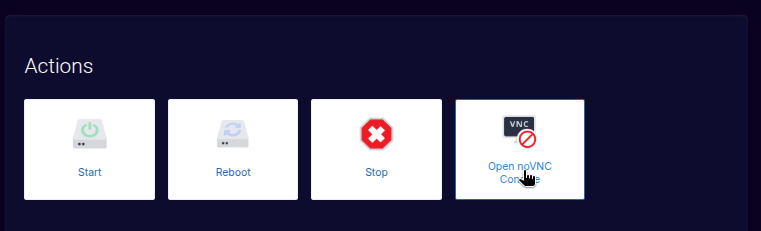
Console access provides direct interaction with your instance regardless of network configuration.
You should use console access when:
-
Performing an OS installation via ISO
-
Troubleshooting network or firewall issues
-
Recovering from SSH or RDP lockouts
-
Diagnosing boot or configuration problems
Console Access Characteristics
-
Browser-based
-
Does not rely on instance networking
-
Available even if the OS firewall blocks access
???? Advanced
Console access bypasses all in-OS networking and should be considered your primary recovery mechanism.
Credential & Access Best Practices
To avoid access issues:
-
Do not delete your only administrative user
-
Avoid using reserved usernames (
root,admin,ubuntu, etc.) -
Rotate credentials after first login
-
Store credentials securely
⚠️ Important
Losing access due to OS misconfiguration may require manual intervention or a reinstall.
Summary
You can access your instance using:
-
SSH (Linux)
-
RDP (Windows)
-
Browser-based console (all instances)
The console is always available and should be used for recovery and troubleshooting when network access fails.