



Overview
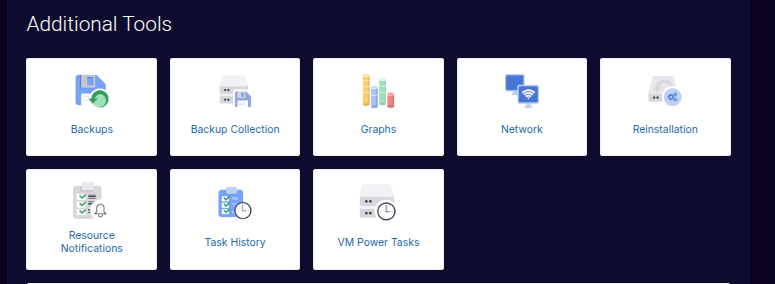
The client portal provides self-service management actions for your instance. These actions allow you to control power state, reinstall the operating system, access the console, manage snapshots, and view network usage.
This article explains what each action does, when it should be used, and what to expect when performing common operations.
Available Management Actions
From the instance details page in the client portal, you can perform the following actions:
-
Start
-
Stop
-
Reboot
-
Reinstall operating system
-
Launch console
-
Mount or unmount ISOs
-
Manage snapshots
-
View bandwidth usage
Power Controls
Start
-
Powers on a stopped instance
-
The operating system boots normally
Use this after:
-
A planned shutdown
-
Maintenance
-
An intentional stop
Stop
-
Gracefully powers off the instance
-
Equivalent to shutting down the OS from within the instance
⚠️ Important
Stopping an instance makes it unreachable until it is started again.
Reboot
-
Restarts the instance
-
Equivalent to a full OS reboot
Reboots are required for certain actions, including:
-
Instance upgrades (plan changes)
-
Adding additional IP addresses
-
Some networking changes
???? Advanced
Reboots are intentionally enforced for these actions to ensure consistency and platform stability.
Reinstalling the Operating System
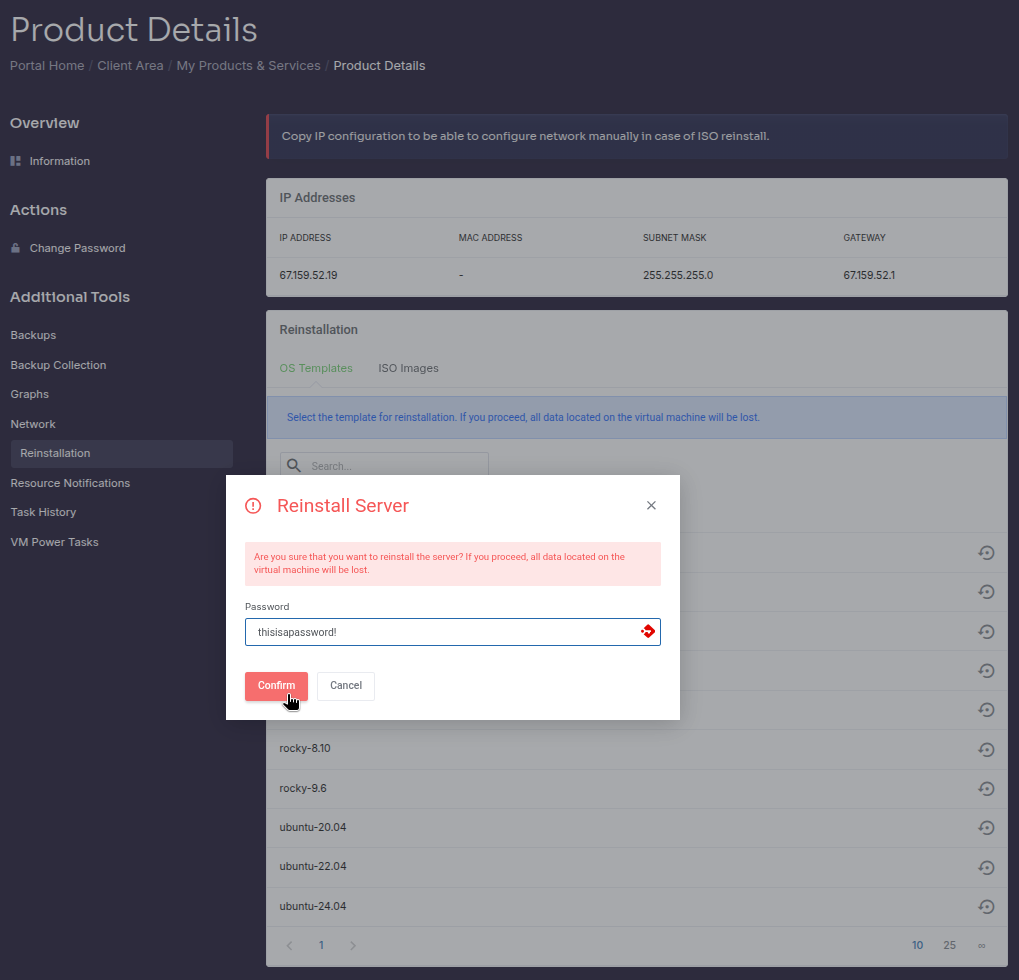
Reinstalling an OS allows you to deploy a fresh operating system onto the instance.
What happens during a reinstall:
-
All existing data on the instance disk is erased
-
A new OS template is deployed, or
-
The instance is prepared for a custom ISO installation
⚠️ Important
Reinstalling an OS is destructive and cannot be undone unless a snapshot or backup exists.
???? Advanced
Reinstalls do not automatically restore snapshots or backups. Restores must be initiated separately.
Console Access
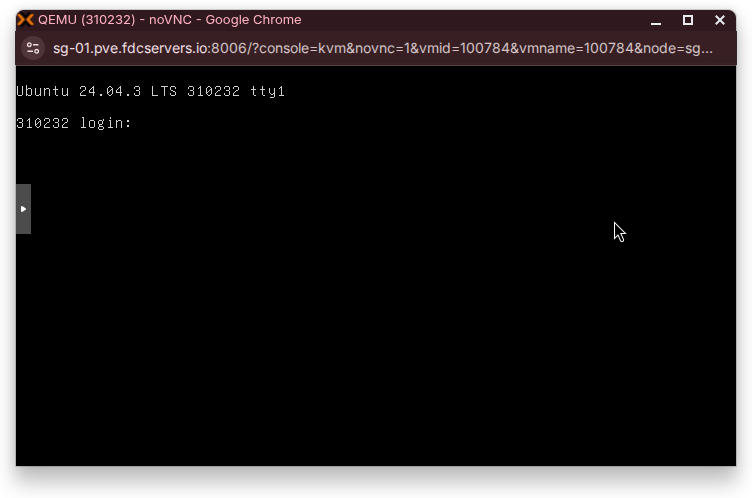
Console access is available at all times and provides direct interaction with the instance.
Use console access for:
-
OS installation via ISO
-
Network troubleshooting
-
Recovery from SSH or RDP lockouts
-
Diagnosing boot issues
ISO Management
You can mount supported ISO images to your instance for manual OS installation or recovery purposes.
-
ISOs are mounted via the client portal
-
Only supported ISOs are available
-
Windows ISOs cannot be used for customer installs
⚠️ Note
Windows installations are performed only by FDCServers staff.
Bandwidth Usage & Monitoring
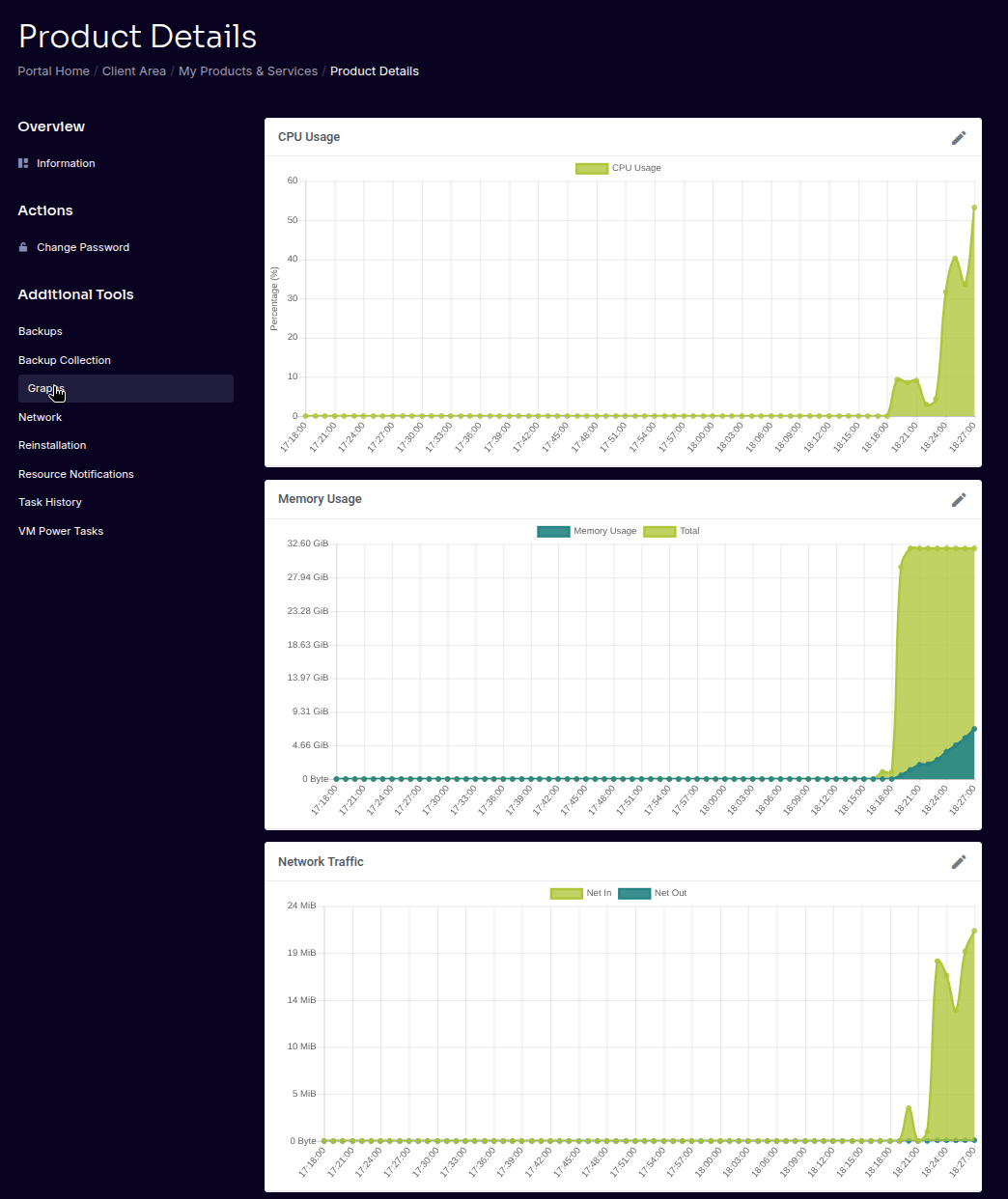
Bandwidth usage graphs are available in the client portal and provide visibility into network activity over time.
???? Advanced
Bandwidth is unmetered but rate-limited per plan. Sustained traffic beyond plan limits may be restricted.
Summary
The client portal provides full control over your instance’s lifecycle and configuration. Most actions are immediate, while some changes—such as upgrades or IP additions—require a reboot to take effect.
Understanding what each action does helps prevent unintended downtime and data loss.